

The Groups plugin allows users to become a member of a group by simply clicking a button. It provides a convenient shortcode [groups_join] for that purpose. At the end of this article, we will also look at alternatives to shortcodes that you can use in a template.
Let’s understand a simple use case where such memberships make sense.
Use Case – Newsletters for Bitcoiners
In the examples that follow, we assume that we have a group named Bitcoiners which your users are free to join. This is useful if you send out newsletters that members of the group will receive. So anyone who’s interested in receiving your newsletter can simply join the group. Our Groups Newsletters extension for Groups would be the perfect match for such a case.
If you want to follow the examples and give it a try, start by creating a group named Bitcoiners on your site. On this documentation page you can learn how to do that, if you’re not so familiar with the Groups plugin yet.
Using Shortcodes and Blocks to provide 1-Click Memberships
Create a new page and add the following content:
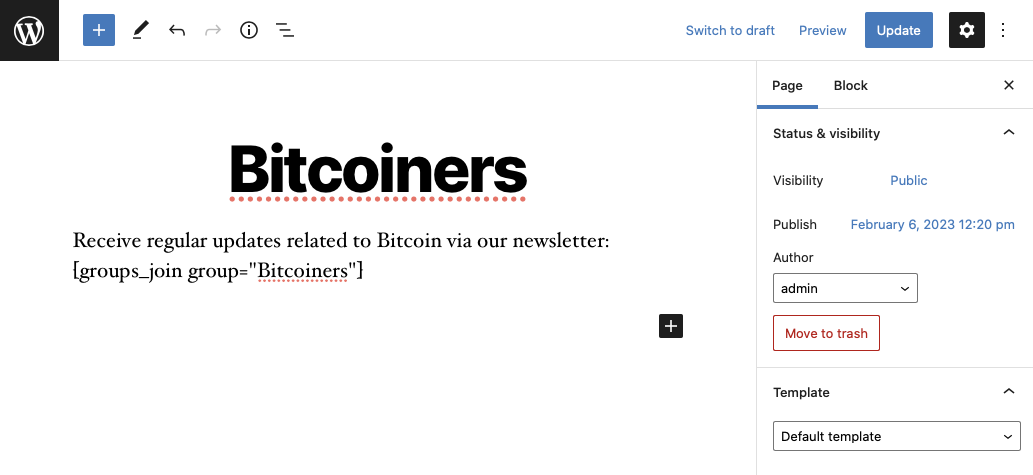
Receive regular updates related to Bitcoin via our newsletter: [groups_join group="Bitcoiners"]
This is how our page looks in the editor:
… and this is how it looks on the front end:

If you click the button to join the group, the page will show:
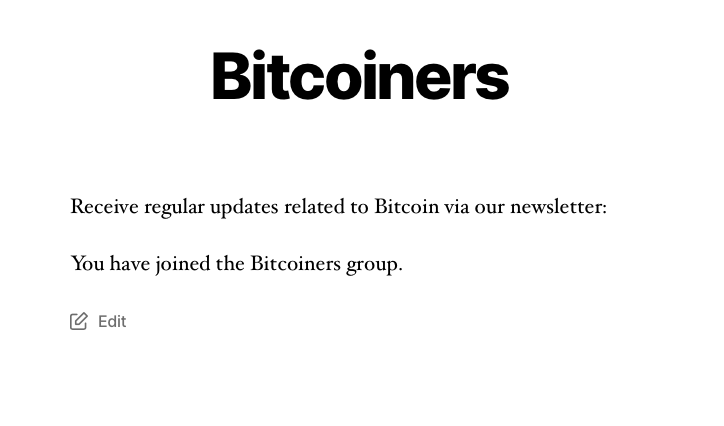
But if you visit the page again later on, it will look odd, because the button will not appear as long as you are a member of the Bitcoiners group. To avoid this, we will only show the part that invites to join to users who are not already a member of the group.
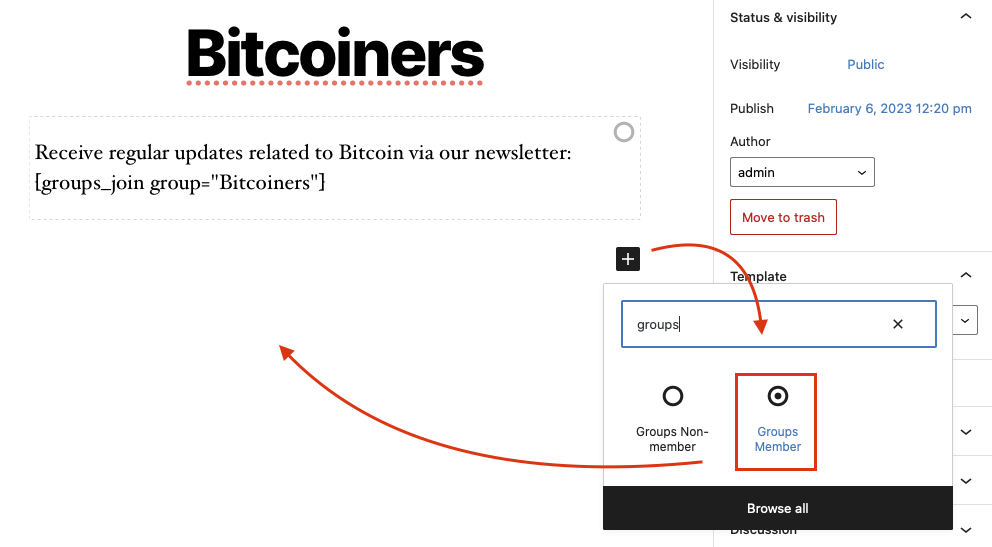
We will enclose the part that allows to join in a Groups Non-member block:
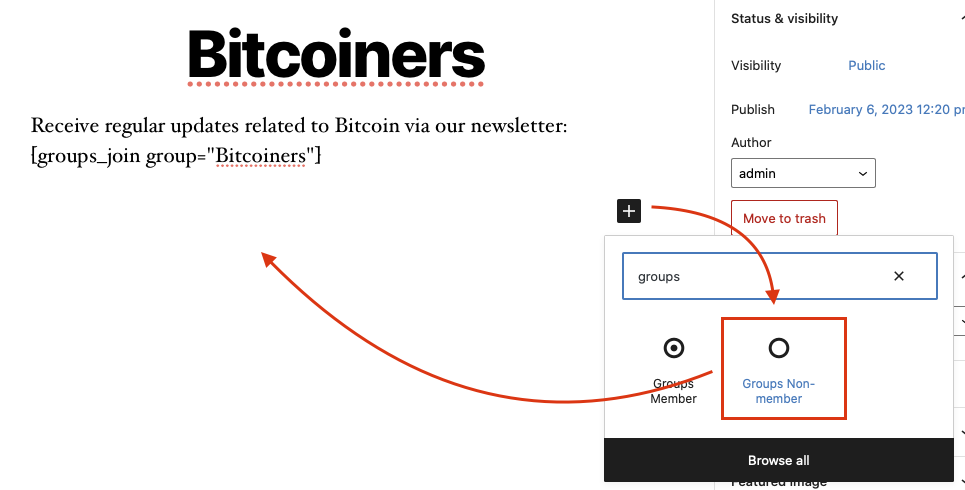
After we’ve moved our paragraph inside this block, we will need to choose the Bitcoiners group for the block, so that members won’t see it:
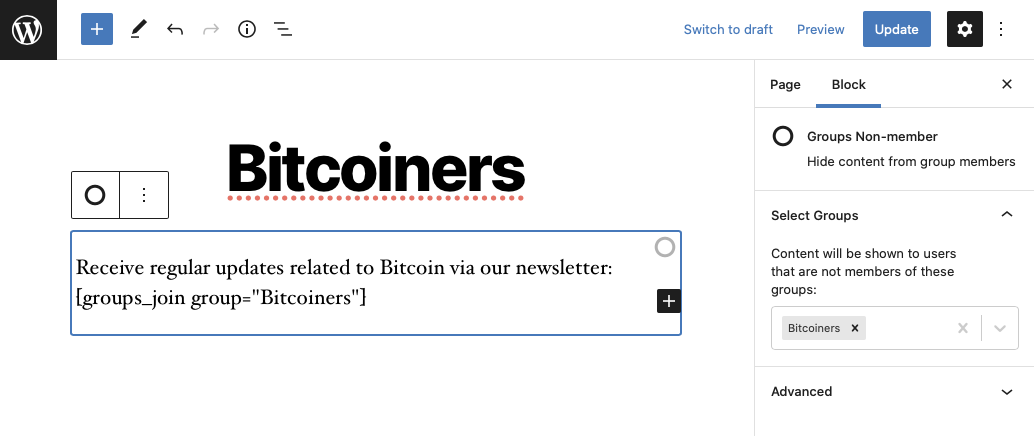
Now when we visit the page as a member of the Bitcoiners group, it will be empty:

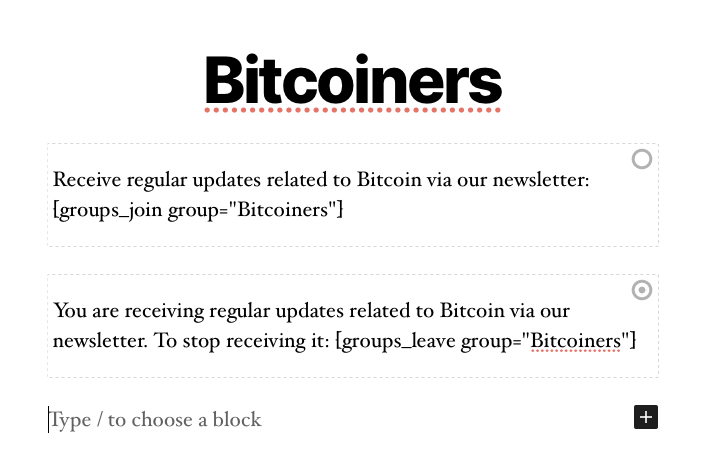
Let’s make it more interesting and useful. Once a member of the group has had enough, he might want to leave the group. For this, we will add another shortcode inside a Groups Member block, which is only shown to members of the Bitcoiners group.
Adding the [groups_leave group="Bitcoiners"] shortcode inside the block, members of the Bitcoiners group will be able to leave:
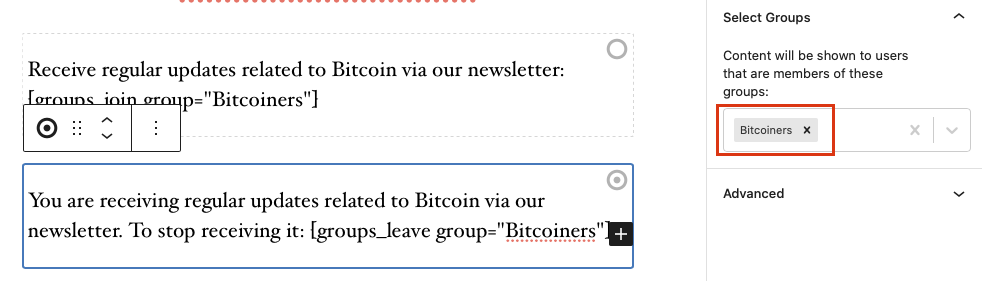
Make sure to choose the Bitcoiners group for the added block, so its content will only be shown to those who are members:
So now when you view the page as a member, you will be offered to leave anytime:

Customizing Templates
But … what if you don’t want to use the shortcode and are looking for a way to achieve the same thing in a customized template for your WordPress theme? In the recent Add to group with click topic, a user was looking for a code-based solution.
WordPress provides a useful API function do_shortcode() which allows to render shortcodes easily. So one alternative would be to use the shortcodes along with the function to render the content in a template.
For example, the button that allows to join the Bitcoiners group can be rendered like this:
<?php echo do_shortcode( '[groups_join group="Bitcoiners"]'); ?>And the button to leave the group like this:
<?php echo do_shortcode( '[groups_leave group="Bitcoiners"]'); ?>Alternatively, you can use Groups’ API directly to render them. The following call will render the join button for those who are not already members of the Bitcoiners group:
<?php echo Groups_Shortcodes::groups_join( array( 'group' => 'Bitcoiners' ) ); ?>Accordingly, the following call will render the button that allows to leave the group, for those who are members:
<?php echo Groups_Shortcodes::groups_leave( array( 'group' => 'Bitcoiners' ) ); ?>It will take additional code to achieve the same as we have in the main part of this article, to render content conditionally based on whether the user is a member or not of the Bitcoiners group. If you’re interested in learning how to do that and don’t know, please ask by leaving a comment below and we can expand on that topic.
1h30


Leave a Reply